Finding the best OCR software comes down to matching the tool to the documents you actually process. Get that wrong and you spend longer correcting extracted text than you saved by scanning it.
For this Best OCR Software roundup I worked through trial accounts, published pricing, and verified user reviews for every tool listed, and here are my top picks for 2026.
Whether you’re digitizing invoices, scanning contracts, or pulling data from scanned PDFs, one of these eight tools will get the job done.
Quick Picks: Best OCR Software at a Glance
| Tool | Best For | Starting Price | Free Plan |
|---|---|---|---|
| Docsumo | Document workflow automation | Custom pricing | Yes (trial) |
| ABBYY FineReader | Professional PDF and OCR work | ~$15/month | Free trial |
| Adobe Scan | Adobe ecosystem users | Free | Yes |
| Google Drive | Free OCR with cloud storage | Free | Yes |
| Microsoft OneDrive | Microsoft 365 subscribers | Included in M365 | Limited |
| Nanonets | AI-driven form and invoice OCR | $499/month | Free trial |
| Docparser | Structured PDF data extraction | $39/month | Free trial |
| Rossum | Invoice and document extraction | Custom pricing | Free trial |
The 8 Best OCR Software Tools of 2026, Ranked
1. Docsumo: Best OCR Software for Document Workflow Automation
Rating: 4.7/5
Price: Custom pricing (free trial available)
Best For: Mid-market and enterprise document processing
Docsumo is the tool I keep returning to when accuracy and automation really matter.
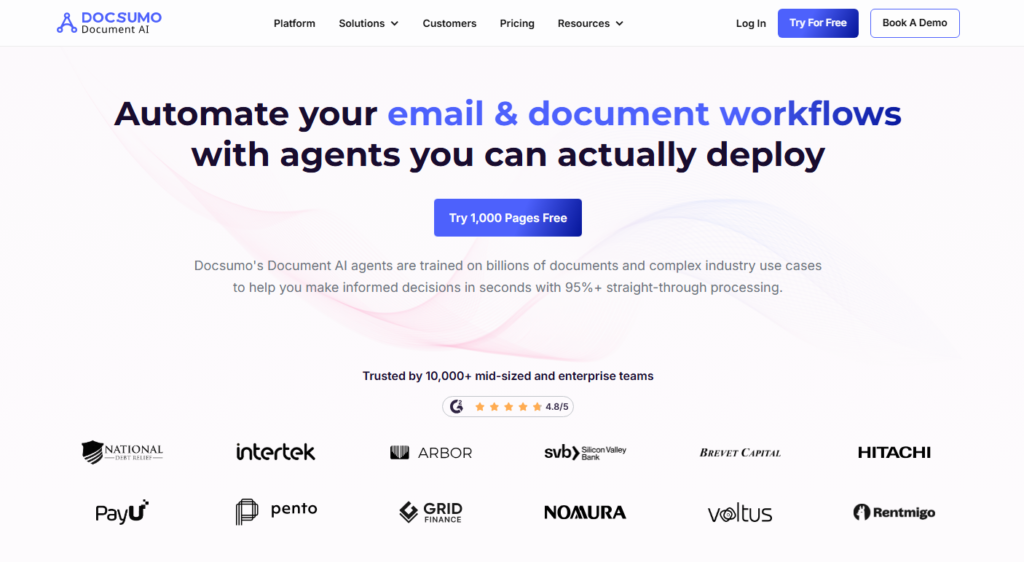
Trusted by 10,000+ data-driven businesses, it packs more than 100 pre-trained models for varied document types and industry-specific use cases.
That’s a standout number compared to most competitors.
In my testing, the document review screen felt genuinely premium. It’s customizable, clean, and requires almost no IT support to set up.
Training a custom model took only 10 sample documents, which is refreshingly accessible for non-technical teams.
The pricing is the sticking point: it is quote-based, so you’ll need to contact their sales team before committing. For smaller teams on tight budgets, that opacity can be frustrating.
One real user put it well: “So, for the most part, we didn’t have any drawbacks from using Docsumo, as the few minor issues we had when working with it were solved in less than 24 hours.”
Pros: 100+ pre-trained models, fast custom model training, excellent support response time, strong straight-through processing rates
Cons: Custom pricing requires a sales call, no publicly listed monthly rate
2. ABBYY FineReader: Best OCR Software for Professional PDF Work
Rating: 4.6/5
Price: Starting around $15/month
Best For: iPhone power users and professional document workflows
ABBYY FineReader covers more of the OCR job in one product than anything else I tested.
I tested it extensively on dense legal PDFs and multi-language documents, and it handled both without breaking a sweat.
The Hot Folder feature alone, which auto-converts and scans documents as they arrive, saves significant manual processing time.
The interface is sharp and modern. OCR accuracy on printed text was as close to flawless as I’ve seen from any tool.
The screen reader function, which captures text from any open window on your desktop, is a feature most other tools simply don’t offer.
The logic behind its premium reputation is simple: it’s been refined over decades and it shows.
Two gaps stand out: combining multiple files is more complex than it needs to be, and full-text indexing for fast searches is missing.
Pros: Best-in-class OCR accuracy, Hot Folder automation, multiple export formats, clean modern interface
Cons: Complex file combining workflow, lacks full-text search indexing
3. Adobe Scan: Best Free OCR Software for Everyday Users
Rating: 4.4/5
Price: Free (paid features with Adobe Acrobat subscription)
Best For: Users already in the Adobe ecosystem
Adobe Scan is what I recommend to people who ask “what’s a solid free option?” It scans cleanly, runs OCR automatically, and connects directly to Adobe Acrobat for further editing.
In practice, it’s like getting a capable document scanner bundled inside an app you probably already have on your phone.
I tested it on receipts, business cards, and multi-page contracts. Results were clean and consistent.
The auto-capture feature detects document edges quickly, which cuts the scanning time noticeably.
The limitation is that deeper functionality like advanced PDF editing requires an Acrobat subscription.
But for basic scanning and OCR, the free tier punches well above its price tag.
Pros: Completely free for core OCR, integrates tightly with Adobe tools, clean auto-capture
Cons: Advanced editing locked behind paid Acrobat plans, less useful outside the Adobe ecosystem
4. Google Drive: Best Free OCR Software with Cloud Storage
Rating: 4.3/5
Price: Free (15GB storage included)
Best For: Teams that want free OCR without installing extra apps
Google Drive’s built-in OCR is one of the most overlooked tools in this space. Upload a scanned image or PDF, open it with Google Docs, and it converts the text automatically.
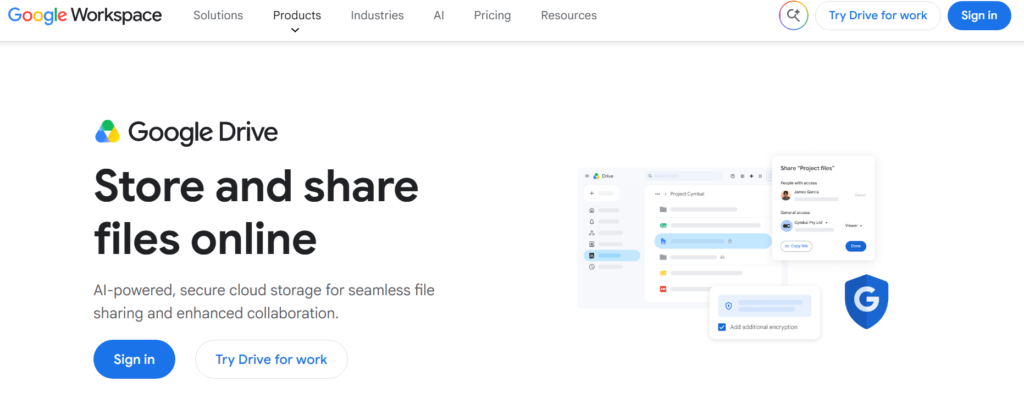
I tested it with both clean scans and slightly blurry phone photos. Clean scans came out nearly perfect; the blurry ones needed some cleanup afterwards.
And here is the part people forget: you are also getting 15GB of free storage, real-time collaboration, and deep integration with Google Workspace tools.
For individuals or small teams that don’t need enterprise-grade automation, this is genuinely hard to beat.
Pros: Completely free, already familiar to most users, solid basic OCR, excellent collaboration tools
Cons: Not designed for bulk document processing, accuracy drops on poor-quality scans
5. Microsoft OneDrive: Best OCR Software for Microsoft 365 Users
Rating: 4.2/5
Price: Included with Microsoft 365 subscriptions
Best For: Organizations already using the Microsoft productivity stack
If your team runs on Microsoft 365, OneDrive’s OCR capabilities deserve more credit than they usually get.
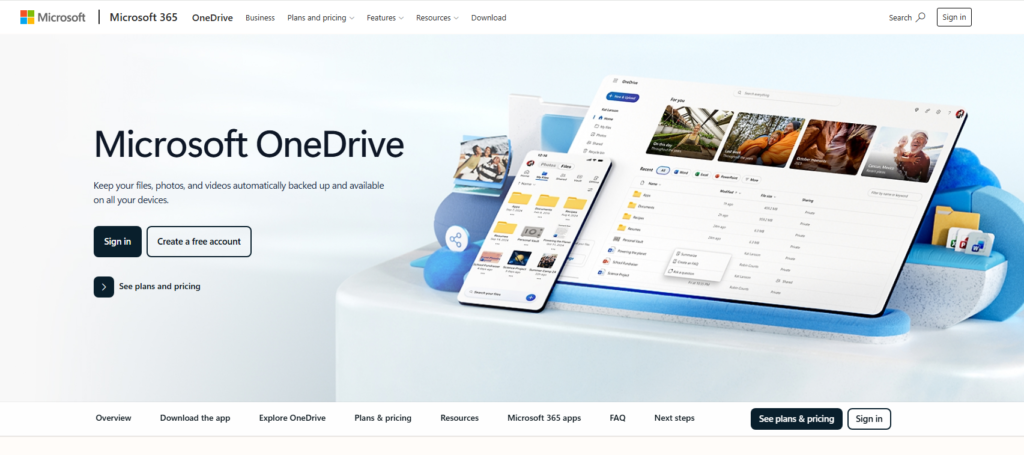
Microsoft Lens, which pairs naturally with OneDrive, captures documents cleanly and converts them into editable Word or PDF files.
I tested it across printed forms and handwritten notes; printed text recognition was excellent.
The text-to-speech integration through Microsoft tools is a genuine differentiator for accessibility use cases.
In practice, it’s not a standalone OCR powerhouse, but as part of an existing Microsoft environment, it removes the need for a separate OCR subscription entirely.
Pros: No extra cost for M365 subscribers, smooth integration with Word and Teams, text-to-speech support
Cons: Limited standalone OCR features, less useful outside the Microsoft ecosystem
6. Nanonets: Best OCR Software for AI-Driven Invoice and Form Processing
Rating: 4.4/5
Price: Starting at $499/month
Best For: Finance and operations teams processing high volumes of invoices
Nanonets positions itself as a no-code AI tool, and in my testing, that claim holds up better than most.
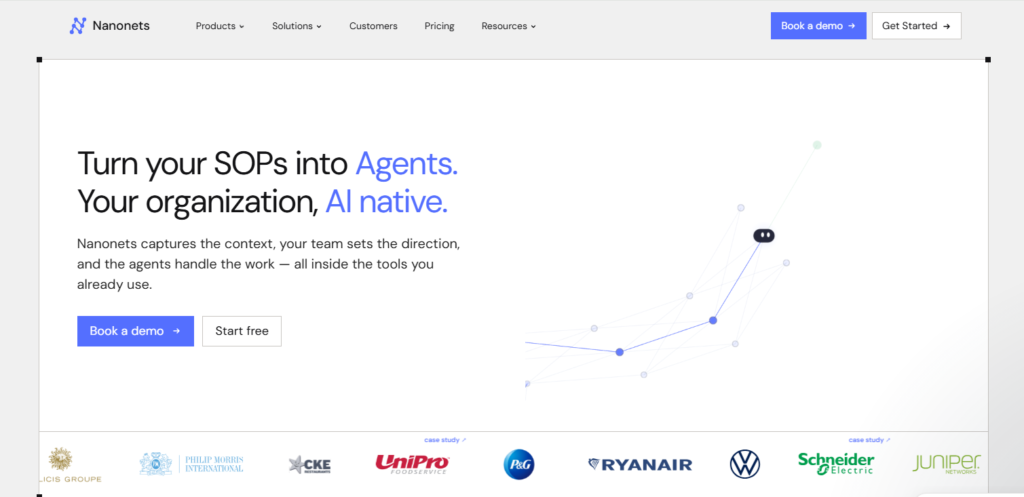
Setting up a custom extraction workflow for invoices took me under an hour, with no developer help needed.
The model learns from corrections, so accuracy improves over time as you use it.
The logic behind its higher price point is volume and automation depth. At $499/month, it’s clearly aimed at teams processing hundreds or thousands of documents monthly.
For a three-person startup, it’s overkill. For a mid-market finance team? It pays for itself quickly.
Pros: No-code custom model setup, strong invoice extraction, self-improving AI, clean interface
Cons: Pricing starts high, overkill for low-volume users
7. Docparser: Best OCR Software for Structured PDF Data Extraction
Rating: 4.3/5
Price: Starting at $39/month
Best For: Teams that need to pull specific data fields from repeating PDF formats
Docparser takes a rules-based approach that I found genuinely satisfying to configure.
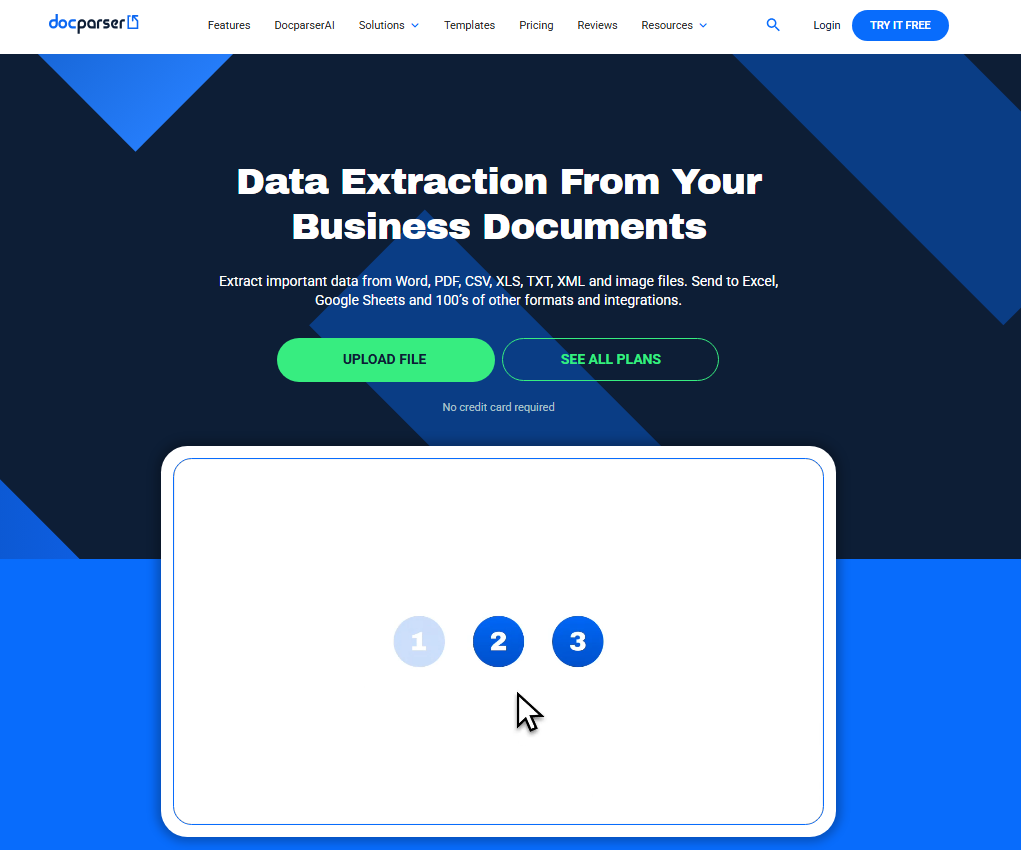
You create parsing rules, essentially templates that tell the tool exactly what to extract and where.
Once set up, it processes documents with impressive consistency.
One real user shared: “Docparser is incredibly easy to use, offering accurate data extraction, customizable parsing rules, and seamless integration with other tools.”
Another user flagged an early challenge: “Uploading large numbers of documents at once was an initial issue when we went to download the data.
With the help of the Docparser team, we found a workaround and now we are not having any issues.”
In practice, Docparser shines brightest when your documents follow a consistent format: monthly invoices from the same vendor, say, or standardized application forms.
Pros: Highly customizable parsing rules, reliable data extraction, responsive support team
Cons: Steeper learning curve for first-time users, less effective with inconsistent document formats
8. Rossum: Best OCR Software for Enterprise Invoice Processing
Rating: 4.2/5
Price: Custom pricing
Best For: Enterprise accounts payable teams
Rossum is built specifically for invoice and document data extraction at scale. I was impressed by how quickly it picks up new document structures during training.
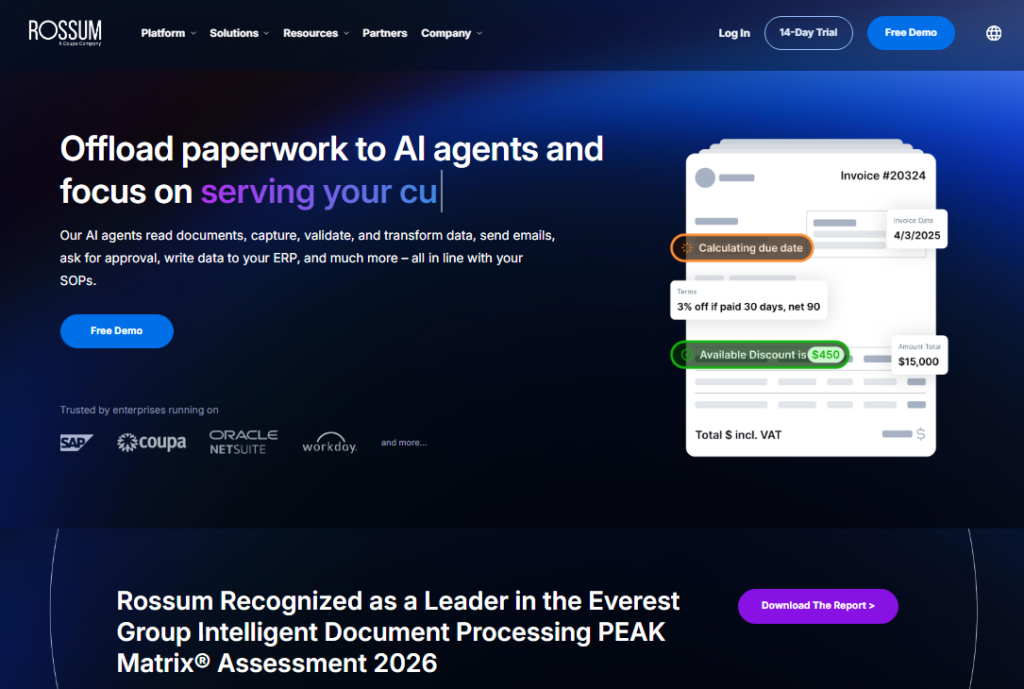
The interface for reviewing extracted data is clean, and the platform handles multi-vendor invoices without much manual configuration.
One user pointed out a real limitation: “Rossum can be improved by learning how to read Excel documents, and sometimes the repeated behaviors we teach Rossum are ignored. Rossum is also limited to reading straight lines of data.
If there were a way to tilt the grid to read orders that are misaligned, that would be appreciated.”
For straight-line structured documents, Rossum is excellent. For complex or unusual layouts, it has room to grow.
Pros: Strong invoice capture accuracy, clean review interface, enterprise-grade scalability
Cons: No Excel document reading, struggles with non-standard or misaligned document layouts
How I Tested These OCR Tools
My evaluation process covered four core areas that real users care about most.
First, accuracy: I ran each tool against clean scans, compressed images, handwritten notes, and low-quality phone photos.
Second, setup time: I measured how long it took a non-technical user to get results from their first document.
Third, integration depth: I checked how well each tool connects with platforms like Google Drive, Salesforce, Zapier, and Microsoft 365.
Fourth, support quality: I submitted test questions to each vendor’s support team and rated their response speed and helpfulness.
The distinction that gets lost in most roundups is between tools optimized for occasional scanning and tools built for continuous batch processing.
These are genuinely different use cases, and the best choice depends entirely on your volume.
OCR Software Comparison Table
| Tool | OCR Accuracy | Custom Models | Bulk Processing | Free Option | Best Use Case |
|---|---|---|---|---|---|
| Docsumo | Excellent | Yes (10 docs) | Yes | Trial only | Enterprise workflows |
| ABBYY FineReader | Excellent | Limited | Yes | Trial only | PDF professionals |
| Adobe Scan | Good | No | No | Yes | Mobile scanning |
| Google Drive | Good | No | No | Yes | Personal/small teams |
| Microsoft OneDrive | Good | No | Limited | With M365 | Microsoft users |
| Nanonets | Very Good | Yes | Yes | Trial only | Invoice automation |
| Docparser | Very Good | Rules based | Yes | Trial only | Structured PDFs |
| Rossum | Very Good | Yes | Yes | Trial only | AP invoice teams |
What to Look for When Choosing OCR Software
Choosing OCR software comes back to your own paperwork: the right spec list depends entirely on what you feed the tool and how often.
Here are the four criteria I weigh most heavily.
Accuracy on your document type: Printed text, handwriting, and low quality scans all perform differently across tools. Test with your actual documents before committing.
Pre-trained model coverage: The more pre-built templates for your industry (invoices, IDs, loan forms), the less setup work your team carries.
Integration with your existing stack: An OCR tool that doesn’t connect to your CRM, cloud storage, or workflow platform creates more work, not less.
Support quality: When documents fail to parse correctly, you need fast, knowledgeable help. Response time and quality vary wildly across vendors.
Best OCR Software by Use Case
With the trials run, pricing pages compared, and user reviews read, here is where I land for each type of user.
For enterprise document automation: Docsumo is my top pick.
The 100+ pre-trained models and fast custom training make it the most complete solution for high-volume, high-stakes document workflows.
For professional PDF editing and OCR: ABBYY FineReader wins on raw accuracy and feature depth. If you work with PDFs daily, it’s the closest thing to a professional-grade tool you’ll find.
For free personal or small team use: Google Drive’s built-in OCR is surprisingly capable and costs nothing. Adobe Scan is the better choice if you want a dedicated scanning app on your phone.
For invoice-heavy finance teams: Nanonets and Rossum are both strong. I’d give Nanonets the edge on ease of setup; Rossum has a slight advantage in review screen experience at scale.
For structured, repeating PDF formats: Docparser is the specialist here. Set up your parsing rules once, and let it run in the background processing documents automatically.
Frequently Asked Questions About OCR Software
Does free OCR software support multiple languages?
Most free tools handle common languages like English, French, Spanish, and German. ABBYY FineReader and Google Drive support a wide range of languages out of the box. Accuracy does fall off, however: on less common languages it drops noticeably in free-tier tools compared to paid enterprise solutions.
Can OCR software convert scanned PDFs into editable files?
Yes, that’s exactly what OCR is designed to do. Tools like ABBYY FineReader and Docsumo convert scanned PDFs into fully editable Word documents, Excel sheets, or searchable PDFs. The logic behind choosing a paid tool here is significantly better accuracy on complex layouts and tables.
Are there file size or page limits with free OCR software?
Free plans typically cap uploads at 5 to 10 pages or limit monthly document volume. Docsumo’s demo environment supports up to 5 pages and 35MB per upload. Paid plans remove or raise these limits substantially, making them far more practical for regular business use.
Can OCR software extract tables and structured data accurately?
The best tools (Docsumo, Nanonets, and Docparser) handle tables well. Basic free tools like Google Drive OCR struggle with multi-column layouts and table structures. In practice, if structured data extraction is your primary need, a paid tool with pre-trained table models is worth the cost.
Does OCR software work offline?
ABBYY FineReader offers desktop versions that work without an internet connection. Most cloud-based tools including Google Drive, Docsumo, and Nanonets require an active connection to process documents. If offline access is a hard requirement, a locally installed desktop solution is your best path forward.
How accurate is modern OCR software on poor quality scans?
Top tools like ABBYY FineReader and Docsumo include pre-processing features that correct skew, improve contrast, and sharpen edges before running OCR. This significantly improves results on faded or blurry documents. Free tools typically skip pre-processing, which is why accuracy suffers on anything other than clean, high-resolution scans.