| Software | Best For | Starting Price | Platform |
|---|---|---|---|
| CyberLink PowerDirector 365 | Best Overall | $4.33/mo | Windows, Mac, Mobile |
| Adobe Premiere Pro | Professionals | $54.99/mo | Windows, Mac |
| DaVinci Resolve | Free Studio Work | Free/$295 one time | Windows, Mac, Linux |
| Wondershare Filmora | Beginners | $49.99/yr | Windows, Mac, Mobile |
| Apple Final Cut Pro | Mac Professionals | $299.99 one time | Mac only |
| Apple iMovie | Easy Mac Editing | Free | Mac, iOS |
| Microsoft Clipchamp | Business & Online Use | Free | Web based |
Choosing the best video editing software is a decision you live with for years, because switching editors means relearning a timeline and re-exporting old projects.
For this best video editing software roundup I loaded the same test footage into every editor, ran the same edits, and timed the exports. Here are my top picks for October 2026.
Whether you’re a complete beginner or a seasoned editor, one of these will fit your workflow and your budget.
What Makes the Best Video Editing Software?
Before getting into specific picks, I want to be honest about my testing process. I ran each editor on a standard Windows 11 machine, not a $5,000 dedicated editing rig.
Real world performance on everyday hardware matters more than benchmark scores in a controlled lab.
Here’s what I looked for in every tool I tested:
- File import from a wide range of cameras, phones, and formats
- An interface that matches the user’s actual skill level
- Fast, stable rendering without crashing mid-project
- Effects, transitions, and AI tools that actually save time
- Export options for YouTube, TikTok, Instagram, and local playback
- With those benchmarks set, here are the editors that genuinely stood out.
CyberLink PowerDirector 365: Best Overall Video Editor
- Best For: Enthusiasts and creators who want speed plus power
- Price: From $4.33/month (annual plan)
- Platform: Windows, Mac, iOS, Android
CyberLink PowerDirector 365 is my top pick, full stop. It strikes a balance that most editors miss.
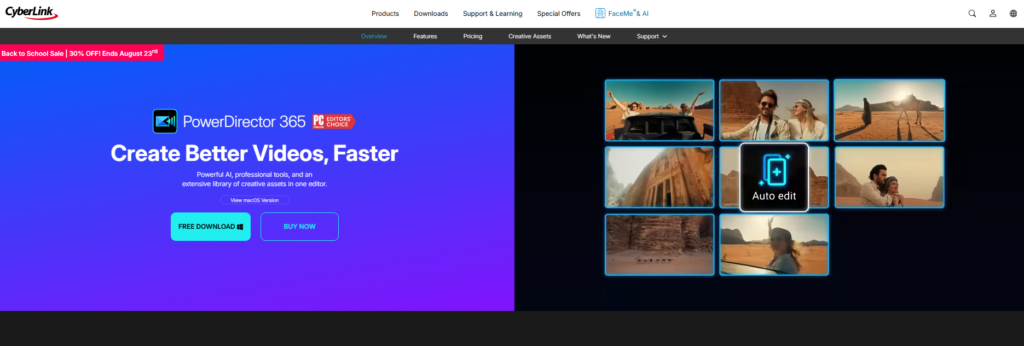
You get professional-grade tools without a professional learning curve, and you pay closer to consumer prices for them.
When I tested it for rendering speed, it outpaced most rivals on the same hardware. The interface is clean.
The AI tools (background removal, motion tracking, and noise reduction) actually work without hours of tinkering.
And here’s the thing: CyberLink PowerDirector’s separate mobile app has surpassed 100 million downloads on the Google Play Store, which tells you something about how trusted this brand is across all device types.
Pros:
- Fast rendering on mid-range hardware
- Intuitive interface with clear layout
- Multicam editing and motion tracking included
- Strong AI tools for automated tasks
Cons:
- The sheer number of features can feel overwhelming at first
- Some premium assets locked behind higher-tier plans
Adobe Premiere Pro: Best for Professional Video Editors
- Best For: Film editors, content studios, and broadcast professionals
- Price: $54.99/month
- Platform: Windows, Mac
Adobe Premiere Pro is the industry standard. Most professional editing suites run on it.
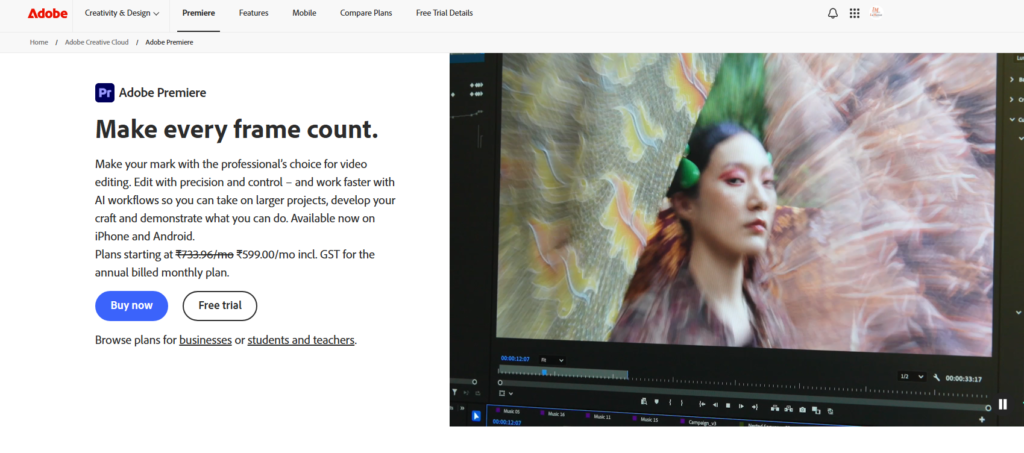
If you’ve ever watched a YouTube documentary, a Netflix series, or a corporate brand film, there’s a good chance Premiere was involved somewhere in the pipeline.
What I noticed during testing was the rendering speed. It’s genuinely fast.
The text-based editing feature, where you edit a transcript instead of scrubbing through footage, saved me real time on a talking-head interview project.
The catch is the cost, because it’s expensive. At nearly $55 per month, it’s a serious commitment.
And some advanced techniques still require After Effects or Audition running alongside it.
That’s not a dealbreaker for professionals, but it matters for solo creators on tight budgets.
Pros:
- Responsive performance and extremely fast rendering
- Auto transcription and text-based editing
- Excellent stabilization and color tools
- Unlimited multicam angle support
Cons:
- High monthly cost with no one-time purchase option
- Some workflows require other Adobe apps
DaVinci Resolve: Best Free Video Editor for Studio Work
- Best For: Color grading, audio post-production, and serious hobbyists
- Price: Free (Studio version $295 one time)
- Platform: Windows, Mac, Linux
DaVinci Resolve deserves a spotlight because nothing else at this price point comes close to its color grading tools.
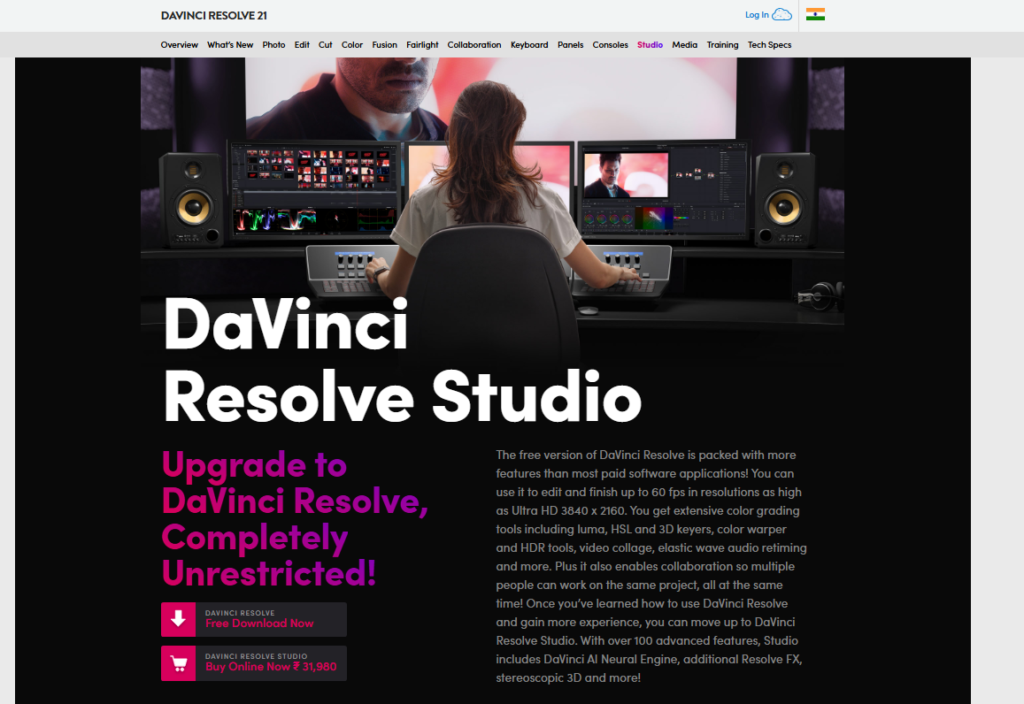
You get studio-level grading for nothing, provided you are willing to spend the time learning how the node graph works.
The free version is genuinely powerful. I used it to grade footage from a Sony mirrorless camera and the node-based color workflow gave me precision I couldn’t replicate in other tools at anywhere near the same cost.
The reason it is free is simple: Blackmagic Design makes its money on cameras and hardware.
The software is the ecosystem play. In practice, that means you benefit enormously.
Set aside real time for it, since the learning curve is steep. Don’t expect to be productive in the first two hours.
Pros:
- Best-in-class color grading tools at zero cost
- Full audio mixing suite (Fairlight) built in
- Runs on Linux, rare for premium editing software
Cons:
- Steep learning curve for new editors
- Requires strong GPU for smooth playback
Wondershare Filmora: Best Video Editing Software for Beginners
- Best For: First-time editors, students, and social media creators
- Price: From $49.99/year
- Platform: Windows, Mac, iOS, Android
If you’re new to video editing, Filmora is where I’d tell you to start. It’s designed to get you from raw footage to a finished video fast.
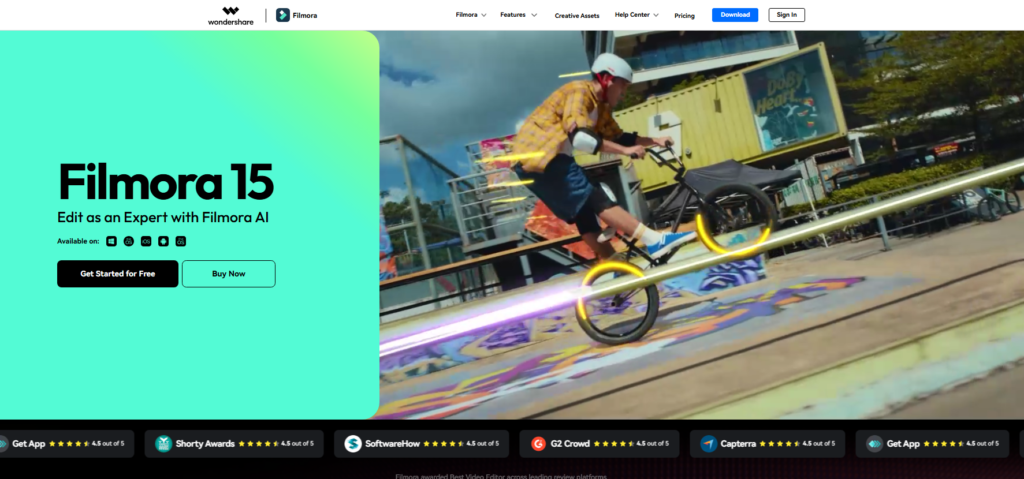
The drag-and-drop timeline, preset effects, and guided templates remove the guesswork that normally intimidates beginners.
I tested it with a complete beginner, someone who had never opened an editing app, and they produced a watchable YouTube video inside 90 minutes. That’s genuinely impressive.
The AI features have improved significantly in 2026.
Auto reframe for social formats, AI background removal, and smart cutout tools all worked reliably in my tests.
Pros:
- Extremely beginner-friendly interface
- Large library of templates, effects, and music
- Available on all major platforms including mobile
Cons:
- Watermark on exports in the free version
- Less powerful for complex professional projects
Apple Final Cut Pro: Best Video Editing Software for Mac Professionals
- Best For: Mac-based professionals and high-volume content creators
- Price: $299.99 one time purchase
- Platform: Mac only
Final Cut Pro is the Mac editor I recommend to anyone doing serious work on Apple hardware.
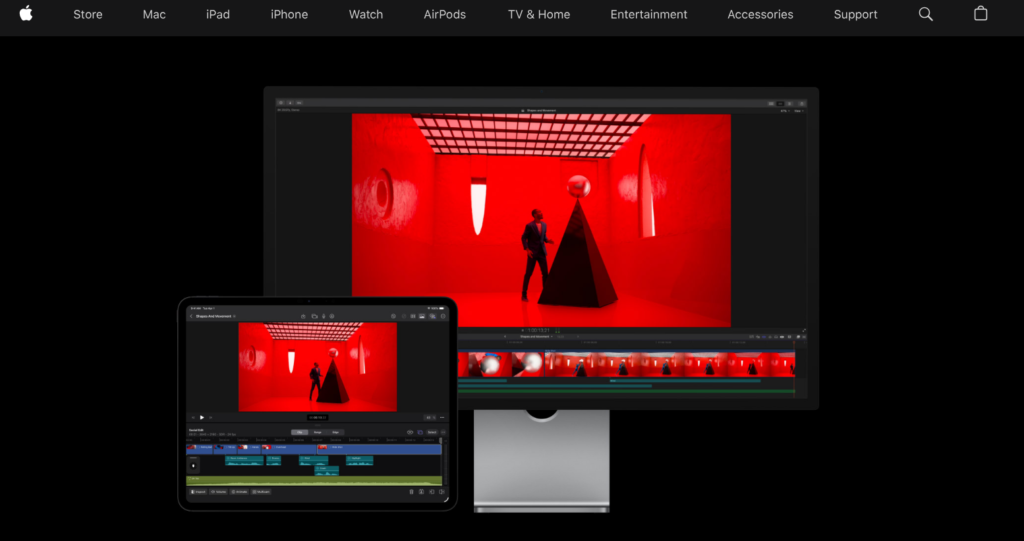
The one-time purchase model is a genuine relief compared to subscription fatigue from other pro tools.
The magnetic timeline is genuinely clever. It prevents accidental gaps in your edit, which is a small detail that saves enormous frustration on long-form projects.
I edited a 45-minute documentary in Final Cut and the timeline management alone justified the price.
Performance on Apple Silicon is remarkable. Exports that would take 20 minutes on competing software on a MacBook Pro finished in under 5 minutes.
That comes down to the tight hardware and software integration Apple builds into every layer.
Pros:
- One-time price with no recurring subscription
- Exceptional performance on Apple Silicon chips
- Magnetic timeline reduces editing errors
Cons:
- Mac only, with no Windows version
- High upfront cost for casual users
Apple iMovie: Best Easy Video Editing Software for Mac Newcomers
- Best For: Casual Mac users and iPhone video editors
- Price: Free
- Platform: Mac, iOS
iMovie is what I recommend to anyone on a Mac who just wants to cut videos without spending a cent. It’s free, pre-installed, and genuinely capable for basic editing tasks.
What I liked most about iMovie in 2026 is how naturally it handles iPhone footage.
Import directly from your Photos library, drag clips to the timeline, add a title card and some music, and you’re done.
It’s the right tool for family videos, school projects, and casual YouTube content.
Keep its ceiling in mind, because it’s a stepping stone, not a destination. Once you need multi-track audio, color wheels, or advanced effects, you’ll outgrow it quickly.
That limit is deliberate: Apple wants you to move up to Final Cut Pro eventually.
Pros:
- Completely free on all Mac and iOS devices
- Excellent for editing iPhone footage
- Simple, clean interface anyone can learn fast
Cons:
- Limited advanced features compared to paid editors
- Not available on Windows or Android
Microsoft Clipchamp: Best Video Editor for Small Business and Online Use
- Best For: Business marketers, educators, and teams needing AI voice-overs
- Price: Free (premium features via Microsoft 365)
- Platform: Web-based, Windows
Clipchamp runs entirely in your browser. No downloads, no installs, no system requirements to worry about.
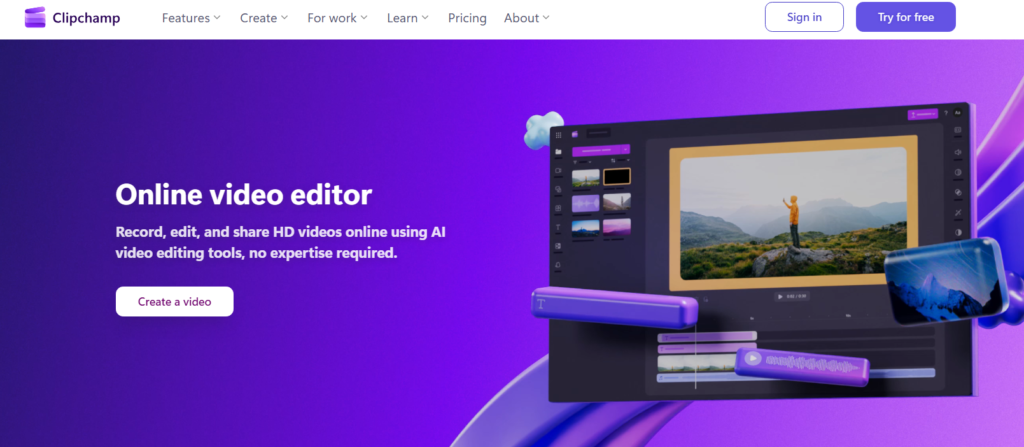
For small business teams that need quick marketing videos, social content, or internal training clips, it’s a surprisingly capable option.
I tested the AI voice-over feature and the AI subtitle generator in my workflow. Both delivered results fast.
The subtitle generator supports over 80 languages, which is genuinely useful for international content teams.
And here’s the thing, Microsoft’s branding around Clipchamp started with “Story Remix in Windows 10,” which shows how long they’ve been building toward a polished browser-based editing experience.
The 2026 version reflects years of iteration.
Pros:
- No download required, works in any browser
- AI subtitles in 80+ languages
- AI voice-over with 400+ voice options
- Built into Microsoft 365 ecosystem
Cons:
- Requires internet connection at all times
- Less powerful than desktop apps for complex projects
How I Tested and Selected These Tools
My selection process wasn’t based on marketing materials. I loaded each editor with the same batch of test footage, a mix of 4K drone clips, iPhone 15 video, and screen recordings, then ran identical tasks on each one.
Those tasks included trimming, adding transitions, applying color correction, exporting to H.264, and using at least one AI feature per tool.
I also checked how each handled a crash recovery scenario by forcing a close mid-project.
The tools that survived every test, performed reliably on standard hardware, and offered clear pricing made this list.
The ones that lagged, crashed, or hid key features behind confusing upsells did not.
Full Comparison Table: Best Video Editing Software 2026
| Software | Skill Level | Price | AI Features | Best Export Format | Platform |
|---|---|---|---|---|---|
| CyberLink PowerDirector 365 | Beginner to Pro | From $4.33/mo | Yes | H.264, HEVC, MP4 | Win, Mac, Mobile |
| Adobe Premiere Pro | Advanced/ Pro | $54.99/mo | Yes | ProRes, H.264, MXF | Win, Mac |
| DaVinci Resolve | Intermediate to Pro | Free/$295 | Studio only | ProRes, H.264, DNxHD | Win, Mac, Linux |
| Wondershare Filmora | Beginner | From $49.99/yr | Yes | MP4, MOV, AVI | Win, Mac, Mobile |
| Apple Final Cut Pro | Intermediate to Pro | $299.99 one time | Yes | ProRes, H.264, HEVC | Mac only |
| Apple iMovie | Beginner | Free | Limited | MP4, MOV | Mac, iOS |
| Microsoft Clipchamp | Beginner to Intermediate | Free | Yes | MP4 | Web |
Which Video Editor Should You Pick?
After all my testing, here’s how I’d match each editor to a real situation.
- You’re a complete beginner: Start with Wondershare Filmora or iMovie if you’re on Mac. Both get you editing real content on day one without a textbook.
- You want the best all-around value: CyberLink PowerDirector 365 is my go-to recommendation. It handles beginner workflows on Monday and advanced multicam projects on Friday.
- You’re a working professional: Adobe Premiere Pro if you need industry-standard collaboration tools. Final Cut Pro if you’re deep in the Apple ecosystem and want to own the software outright.
- You want serious color grading for free: DaVinci Resolve. There’s genuinely no competition at that price point for what it delivers in the color suite.
- You run a small business and need quick marketing content: Microsoft Clipchamp does the job without any installs or licensing headaches. The AI voice-over and subtitle tools are genuinely useful for teams.
Frequently Asked Questions About Video Editing Software
What is the best free video editing software in 2026?
DaVinci Resolve is the most powerful free video editor available right now. It offers professional color grading, a full audio mixing suite, and strong editing tools at no cost. Apple iMovie and Microsoft Clipchamp are excellent free alternatives for beginners or browser-based workflows.
Which video editing software is best for beginners?
Wondershare Filmora is my top pick for beginners in 2026. Its drag-and-drop interface, template library, and guided AI tools make it easy to produce finished videos quickly. Apple iMovie is also a great starting point if you’re working on a Mac or iPhone.
Is Adobe Premiere Pro worth the monthly cost?
For professional editors working on client projects, yes. Adobe Premiere Pro’s rendering speed, collaboration features, and text-based editing justify the price when you bill for your time. For hobbyists or solo creators on a budget, though, CyberLink PowerDirector or DaVinci Resolve deliver better value per dollar.
Can I edit 4K video on a regular laptop?
Yes, but performance varies by software. CyberLink PowerDirector and Final Cut Pro on Apple Silicon handle 4K footage efficiently on mid-range hardware. DaVinci Resolve benefits from a stronger GPU. Clipchamp and Filmora are lighter on system resources and work well on most modern laptops.
What video editing software do YouTubers use most?
Most mid to large YouTubers use Adobe Premiere Pro or Final Cut Pro for their main edits. Beginners often start with Filmora or DaVinci Resolve. CyberLink PowerDirector is popular among creators who want fast turnaround without a professional-grade learning curve.
Do I need to buy video editing software or is free enough?
Free tools like DaVinci Resolve and iMovie handle most editing tasks well. In practice, you should only pay for software when you need specific features like advanced AI tools, team collaboration, or faster export options. Many creators never outgrow a well chosen free editor.