| Tool | Best For | Price | Rating |
|---|---|---|---|
| OBS Studio | Advanced users, free option | Free | 4.8/5 |
| Streamlabs | Gamers, beginners | Free/$19/mo | 4.5/5 |
| StreamYard | Interviews, podcasts | Free/$49/mo | 4.6/5 |
| Restream Studio | Multistreaming to many platforms | Free/$19/mo | 4.4/5 |
| PRISM Live Studio | IRL and mobile streamers | Free | 4.2/5 |
| Wirecast | Professional broadcasters | $599 one time | 4.3/5 |
| vMix | Live production teams | Free/$60 one time | 4.4/5 |
| XSplit Broadcaster | Mid level streamers, clean UI | Free/$8/mo | 4.1/5 |
For this best streaming software roundup I ran every tool live on Twitch, YouTube, and Facebook, watched the CPU meter, and counted the dropped frames. Here are my top picks.
Pick the wrong tool and you get software that reads well on a feature list and drops frames the moment you go live.
I cut through the noise so you know exactly which software fits your setup, your budget, and your streaming goals.
OBS Studio: The Best Free Streaming Software Overall
Rating: 4.8/5
Price: Free
Best For: Experienced streamers who want full control
OBS Studio sits at the top of almost every list of best streaming software and after running it through dozens of live sessions, I understand why.
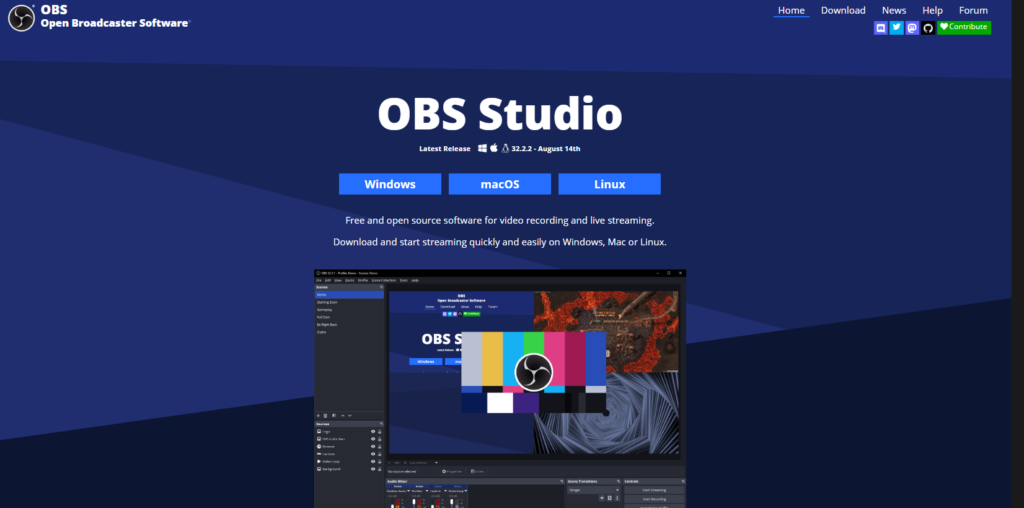
It is genuinely free, open source, and handles everything from basic screen captures to complex multi-scene productions.
When I set it up for the first time, I appreciated the modular dock layout.
You can rearrange panels exactly how you like, even pop them out as separate windows. That flexibility is rare at zero cost.
The audio mixer is one thing competitors quietly gloss over. OBS gives you per-source filters including noise suppression, noise gate, and gain control.
To add to that, it supports VST plugins, which means pro-grade audio processing without buying extra software.
Be ready for the learning curve, because it is real. If you have never touched streaming software before, OBS will feel like sitting in a cockpit for the first time. Give it a weekend and it clicks.
Pros: Completely free, works on Windows/Mac/Linux, deep customization, huge plugin library
Cons: Steep learning curve for new users, no built-in alerts or monetization tools
Streamlabs: Best Streaming Software for Gamers and Beginners
Rating: 4.5/5
Price: Free plan available; paid plans from $19/month
Best For: New streamers on Twitch and YouTube
Streamlabs takes the OBS engine and wraps it in a much friendlier shell. You get the same encoding engine, with the scenes, overlays, and platform links already wired up for you.
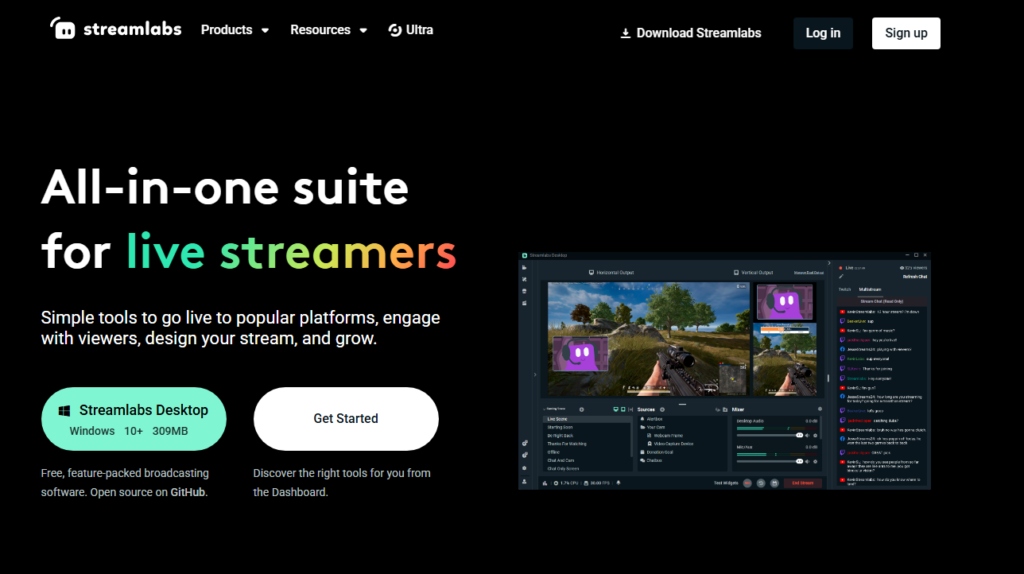
When I tested it, the onboarding took under ten minutes and I was live on Twitch with overlays and alerts running.
The built-in alert system is where Streamlabs earns its keep.
Follower alerts, donation popups, and subscriber celebrations all work out of the box without connecting third-party services. Practically speaking, this saves a beginner hours of setup time.
The free tier is genuinely useful, and most reviews undersell it badly. You get core streaming features, basic overlays, and alert functionality at no cost.
The $19/month plan adds the Multistream feature, premium themes, and the Merch store integration.
The tradeoff is resource use: Streamlabs is heavier on system resources than vanilla OBS. On older machines, I noticed frame drops during intense gaming sessions that plain OBS handled fine.
Pros: Beginner-friendly, built-in alerts and overlays, Twitch integration is smooth
Cons: Higher CPU usage, some premium features locked behind subscription
StreamYard: Best Streaming Software for Interviews and Panels
Rating: 4.6/5
Price: Free plan available; paid plans from $49/month
Best For: Podcasters, talk shows, remote guest interviews
StreamYard operates entirely in your browser, with no download required. That alone makes it stand out in a crowded market.
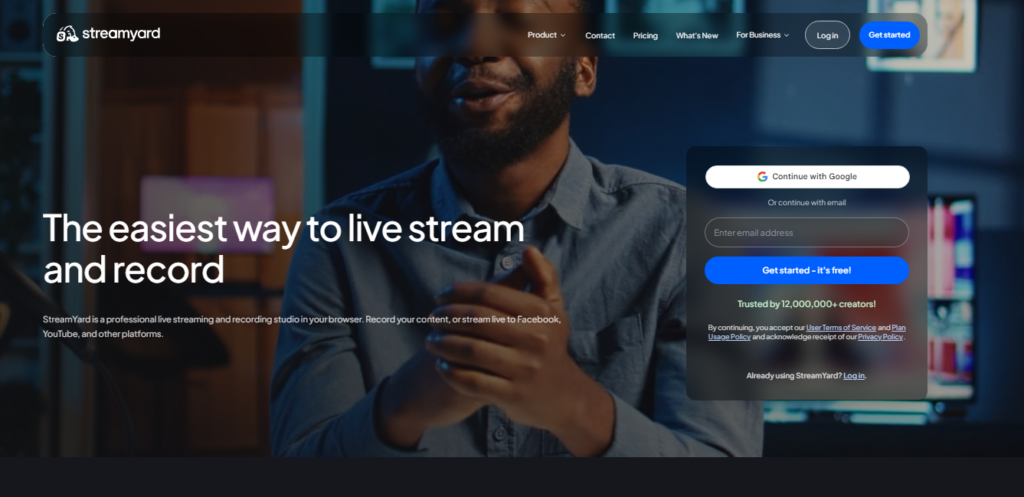
When I tested it for a panel-style stream with three remote guests, inviting them was as easy as sharing a link. No accounts, no installs on their end.
The branded lower thirds and logo overlays load in seconds. I added a background, colored banners, and a ticker message in under five minutes.
For anyone running a business stream or a professional podcast, this matters.
StreamYard’s comment integration deserves far more attention than it gets.
Comments from YouTube, Facebook, and LinkedIn pull into a single sidebar feed, and I could pin them on screen with a single click during the live show.
That kind of viewer interaction tool is usually found only in expensive broadcast setups.
The pricing does jump sharply. The free plan limits you to 2 hours per broadcast and adds a StreamYard watermark.
The $49/month plan removes those limits, which is a bigger ask compared to rivals.
Pros: Browser-based, easy guest invites, excellent comment management, professional look fast
Cons: Paid tier is expensive, free plan has watermark and time cap
Restream Studio: Best Streaming Software for Multistreaming
Rating: 4.4/5
Price: Free plan available; paid plans from $19/month
Best For: Creators who stream to multiple platforms at once
Restream Studio is built around one central idea: go live everywhere simultaneously.
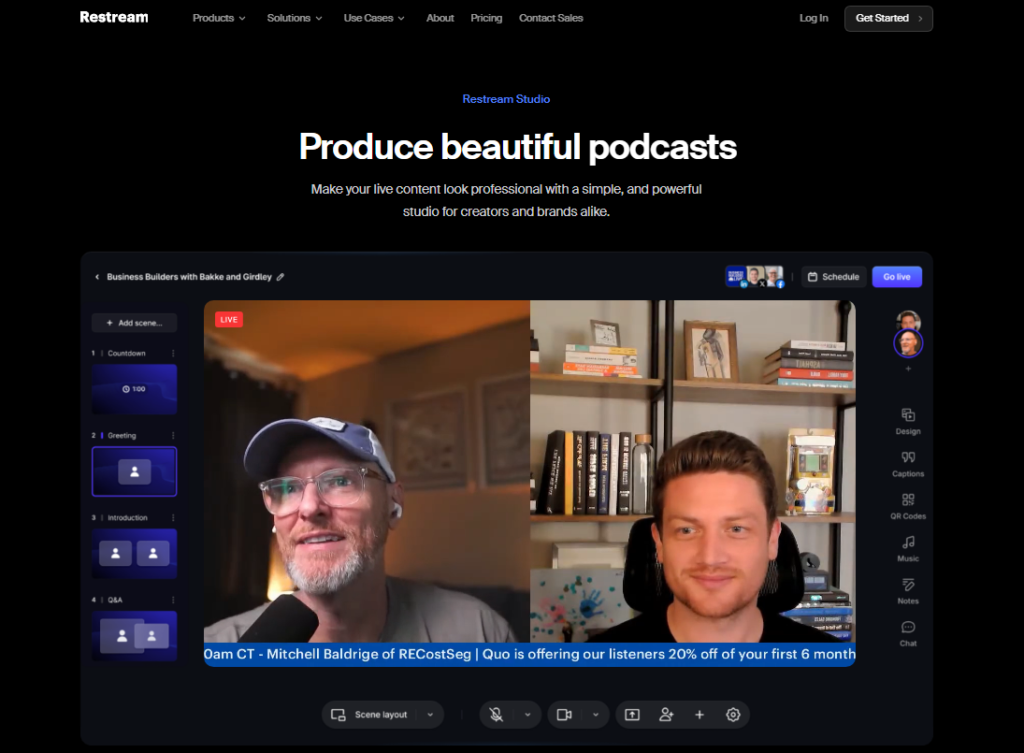
During my tests, I streamed to YouTube, Twitch, and Facebook at the same time from a single dashboard.
The reason that matters is simple: your audience is split across platforms, and reaching all of them doubles your exposure without doubling your effort.
The free plan supports basic multistreaming to two channels. Paid plans unlock 30 plus platforms including LinkedIn Live and TikTok.
I found the setup straightforward even on the free tier.
Restream also functions as a browser-based studio, similar to StreamYard, with guest invites and on-screen graphics.
The part almost nobody writes about is Restream’s analytics dashboard.
It pulls viewership data across all platforms into one chart, which saves a lot of tab switching after your stream ends.
Watch the video quality ceiling on the free plan, which sits lower than what rivals offer. You will want a paid plan for HD output if quality is a priority.
Pros: Simultaneous multistreaming, browser-based, solid analytics, easy platform linking
Cons: Free plan limits quality and channels, interface less polished than StreamYard
PRISM Live Studio: Best Streaming Software for IRL and Mobile Streamers
Rating: 4.2/5
Price: Free
Best For: On location and mobile content creators
PRISM Live Studio is a tool I had underestimated before testing it properly.
It handles IRL streaming (streams filmed on location rather than at a desk) better than most desktop-first competitors.
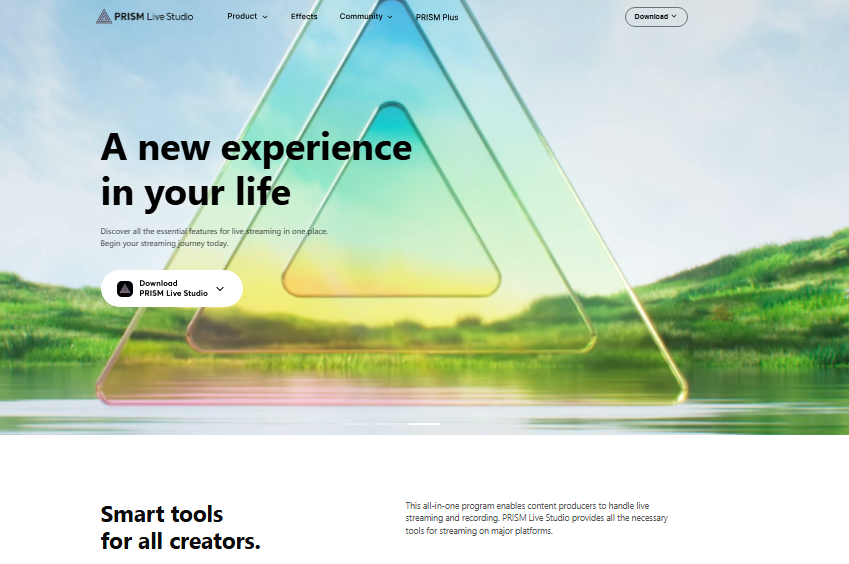
The chroma key tool worked reliably even in my mediocre home lighting setup.
Customization effects and animated overlays gave my stream a polished look without requiring graphic design skills.
Practically speaking, PRISM punches well above its free price tag for visual production quality.
The desktop version supports Windows and connects to YouTube, Twitch, and Facebook.
To add to that, the mobile app version extends the same feature set to your phone, which no other tool on this list does as smoothly.
Set your expectations on extensibility: the community and plugin ecosystem is much smaller than OBS. If you need deep customization or niche integrations, PRISM may leave you wanting more.
Pros: Strong mobile app, good chroma key, free, creative effects library
Cons: Smaller community, fewer integrations, desktop app less feature-rich than OBS
Wirecast: Best Streaming Software for Professional Broadcasters
Rating: 4.3/5
Price: $599 one time purchase (Wirecast Studio)
Best For: Corporate events, live news, professional productions
Wirecast is the kind of tool you buy when streaming is your job, not your hobby. The one-time price of $599 sounds steep, and honestly it is for casual users.
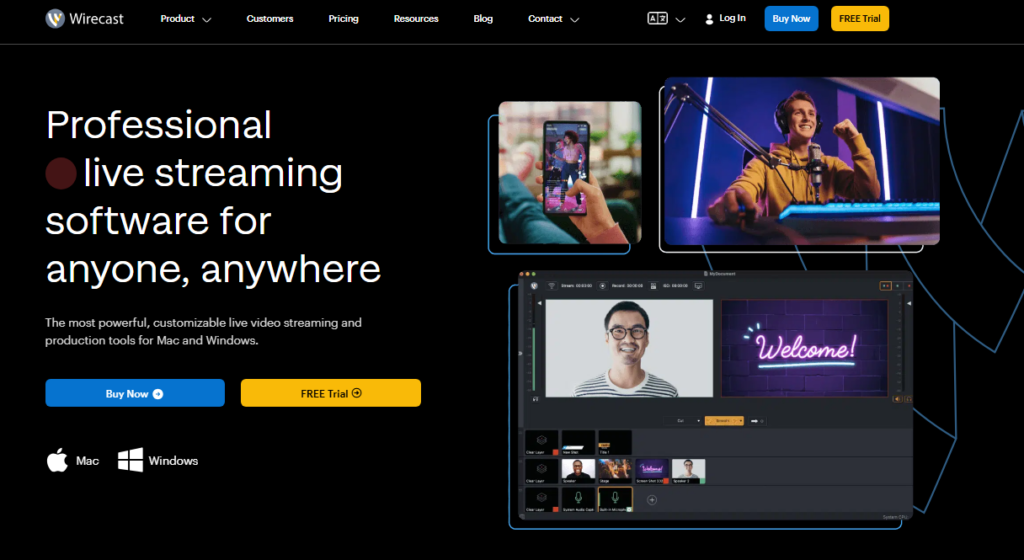
Let me be clear upfront, this is professional broadcast software with a professional price to match.
When I tested Wirecast, the ISO recording feature stood out immediately. It records every camera input as a separate file, which means post-production editing becomes far cleaner.
That feature alone justifies the cost for anyone producing content that also gets repurposed as video on demand.
The built-in stock media library is another item competitors overlook.
Wirecast includes licensed music and video clips you can legally use during streams without worrying about copyright strikes, a genuine relief for anyone who has lost a stream VOD to a music claim.
Pros: ISO recording, stock media library, highly stable, multi-camera support
Cons: Expensive one time cost, overkill for casual streamers, steeper learning curve
vMix: Best Streaming Software for Live Production Teams
Rating: 4.4/5
Price: Free basic version; paid plans from $60 one time
Best For: Multi-camera live events, production teams
vMix is a Windows-only live production platform that handles multi-camera switching with impressive precision.
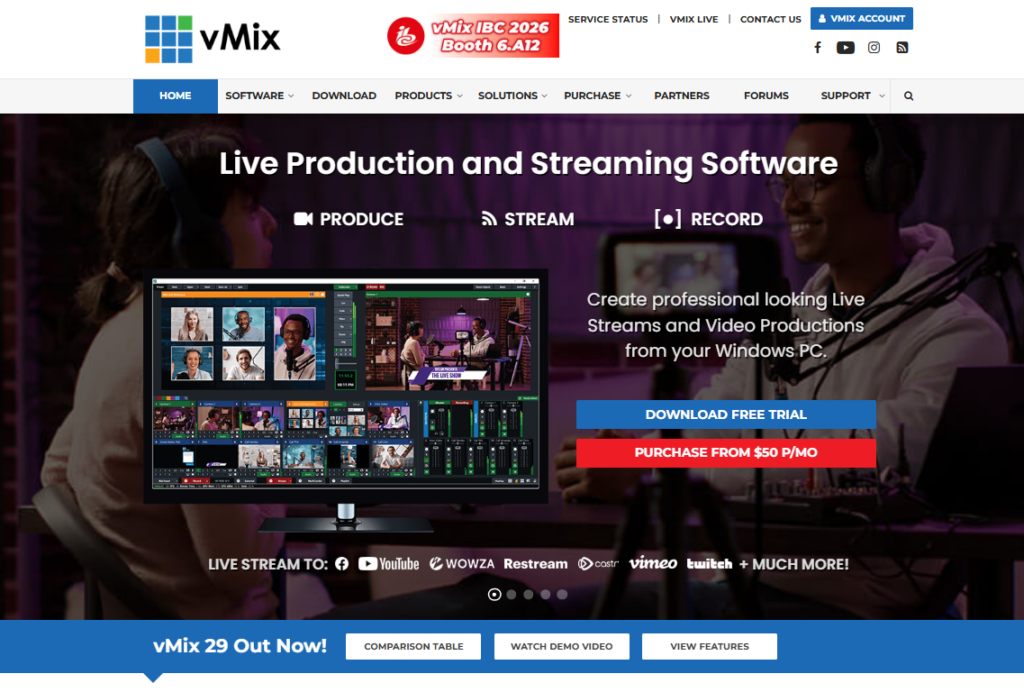
The reasoning I rate it highly for teams: up to four operators can control different aspects of the same production simultaneously using vMix’s input system.
I tested the free version first and was surprised by what it includes: 2 camera inputs, basic mixing, and streaming to a single platform.
The paid tiers scale up to 4K output, NDI support, and virtual sets, making it genuinely competitive with Wirecast at a lower starting price.
The instant replay feature is one thing most other tools in this space simply do not offer.
For sports broadcasts or event streams where you want to replay a key moment, vMix handles it without extra hardware or software.
Pros: Free entry point, multi-operator support, instant replay, scales to 4K
Cons: Windows only, interface looks dated, full features require paid upgrade
XSplit Broadcaster: Best Streaming Software for Mid-Level Streamers
Rating: 4.1/5
Price: Free plan available; premium from $8/month
Best For: Mid-level streamers who want a clean interface without OBS complexity
XSplit Broadcaster sits in a useful middle ground. It is more polished than OBS for beginners, yet more flexible than Streamlabs for users who want manual control.
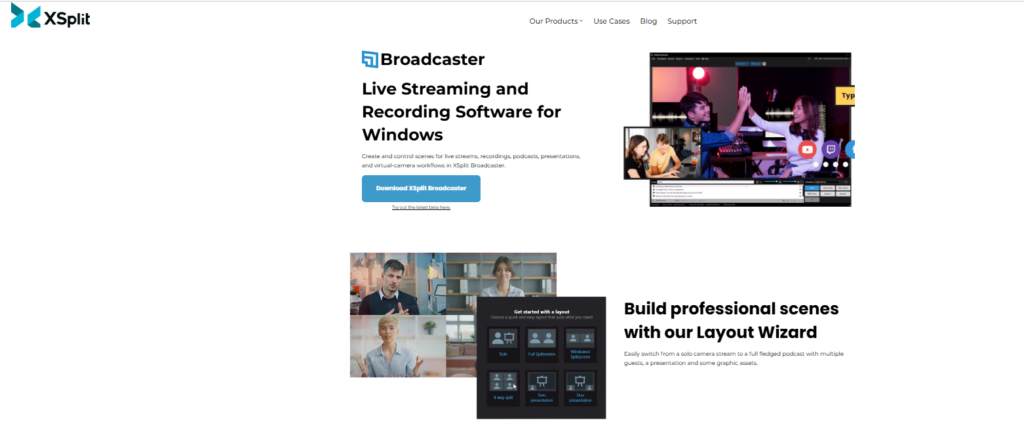
Sources, scenes, and outputs each sit where you expect them, so nothing takes two menus to find.
When I tested the scene setup, adding sources and switching between layouts took noticeably less time than OBS.
The built-in presenter mode is useful for business streams: it gives you a clean, focused view during your live session without distraction from backend panels.
To add to that, XSplit integrates directly with popular capture cards from Elgato and AVerMedia, which is a practical perk for console streamers who use hardware capture rather than screen recording.
The catch sits in the free tier, since XSplit’s free version is genuinely limited. The watermark, resolution cap, and missing features push most users toward the paid plan fairly quickly.
Pros: Clean interface, good capture card compatibility, affordable paid plan
Cons: Free version is limited, smaller plugin community, less powerful than OBS at comparable settings
How I Selected and Tested These Tools
My testing process covered three core areas: setup time, stream stability, and feature depth.
I ran each tool through a minimum of five live sessions across Twitch, YouTube, and Facebook, and recorded how each one performed under real streaming conditions.
I paid attention to CPU usage during streams on a mid-range PC (Intel Core i7, 16GB RAM, RTX 3060).
Tools that pushed CPU usage above 80 percent during a 1080p/60fps stream got marked down.
I also tracked dropped frame rates and audio sync issues across sessions.
Pricing was evaluated on actual value for new streamers, not just raw feature count.
A $600 tool with features most creators never use scores lower than a $19/month tool that actually solves the problems you face on day one.
Full Comparison: Best Streaming Software Side by Side
| Tool | Platform | Multistream | Browser Based | Best Plan Price |
|---|---|---|---|---|
| OBS Studio | Win/Mac/Linux | With plugin | No | Free |
| Streamlabs | Win/Mac | Yes (paid) | No | $19/mo |
| StreamYard | Browser | Yes (paid) | Yes | $49/mo |
| Restream | Browser | Yes | Yes | $19/mo |
| PRISM Live | Win/Mobile | Limited | No | Free |
| Wirecast | Win/Mac | Yes | No | $599 one time |
| vMix | Windows only | Yes (paid) | No | $60 one time |
| XSplit | Windows only | No | No | $8/mo |
FAQ: Best Streaming Software Questions Answered
What is the best streaming software for absolute beginners?
Streamlabs is the best starting point for complete beginners. The reasoning is simple: it handles overlays, alerts, and platform connections in one place with guided setup. You can go live on Twitch or YouTube in under 15 minutes without touching any advanced settings or reading documentation.
Is OBS Studio really free with no hidden costs?
Yes, OBS Studio is completely free with no subscriptions, watermarks, or paid upgrades. It is open-source software supported by community donations and sponsors. You get every feature, including the ones rivals put behind a subscription, without spending a dollar.
Which streaming software works best for YouTube Live?
OBS Studio and StreamYard both perform well for YouTube Live. OBS gives you the most technical control, while StreamYard is better if you host guests or interviews. Restream Studio is worth considering if you want to reach YouTube and other platforms simultaneously from a single session.
Can I stream to multiple platforms at the same time?
Yes, several tools support multistreaming. Restream Studio is built specifically for this purpose and supports 30 plus platforms. Streamlabs and StreamYard also offer multistreaming on paid plans. OBS can do it through a free plugin called Restream OBS plugin, though setup requires a few extra steps.
What streaming software uses the least CPU?
OBS Studio consistently uses the least CPU in my testing when configured correctly. Using the NVENC hardware encoder (available on NVIDIA GPUs) drops CPU load significantly during 1080p streams. PRISM Live Studio also runs lean. Streamlabs uses notably more CPU due to its added overlay and alert processing layer.
Do I need paid streaming software to look professional?
No. OBS Studio and PRISM Live are both free and can produce professional quality streams with the right scenes and overlays. Paid tools like StreamYard speed up the process, but free tools reach the same quality ceiling if you invest the setup time. Budget is not the limiting factor here. Configuration is.
Which Streaming Software Should You Use?
After all the testing, my picks come down to who you are and what you need right now.
- If you are a complete beginner, start with Streamlabs. It removes the friction of getting your first stream live, and the free plan is good enough to start building your audience without spending anything.
- If you want maximum control for free, OBS Studio is the clear answer. I use it myself for streams where I need precise scene management, multiple audio sources, and plugin support. The learning investment pays off fast.
- If you run interview-style shows or remote panels, StreamYard is worth the price. The browser-based guest system and comment management tools genuinely set it apart. Practically speaking, nothing else makes hosting a multi-guest stream this smooth.
- If you want to reach every platform at once, Restream Studio is purpose-built for that job. For $19/month, pushing your stream to YouTube, Twitch, Facebook, LinkedIn, and TikTok simultaneously is a strong return on that investment.
- If you are a professional broadcaster or run corporate events, Wirecast or vMix will serve you better than any consumer-grade tool. The ISO recording, multi-operator support, and stability at scale justify the higher cost when streaming is your livelihood rather than your pastime.
The best streaming software is ultimately the one that matches your current skill level, your hardware, and the platform where your audience lives.
Start with the free options, grow into the paid ones when your needs outgrow them, and do not pay for features you will not use in your first six months.